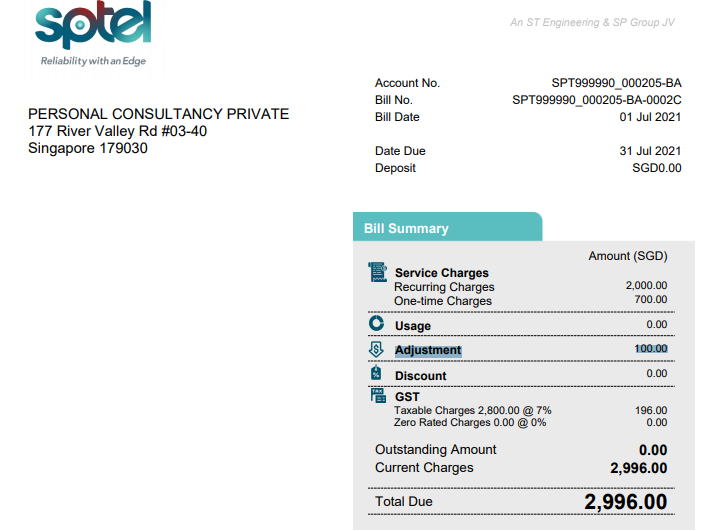
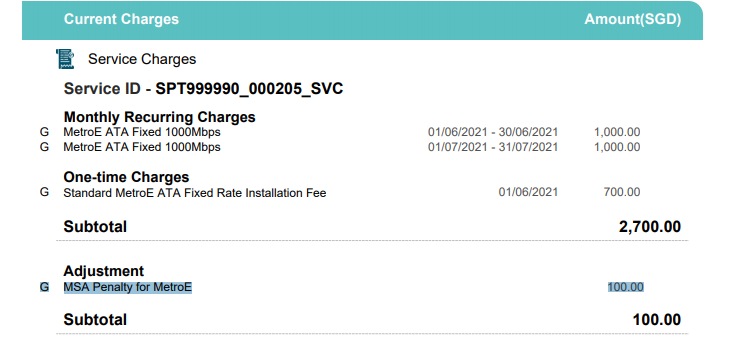
Once the account manager finds out that the commitment amount and/or the committed connections within a period are not fulfilled, then follow the below steps.
1. Log in to billing care and open the billing account for which the account manager would like to apply the penalty for.
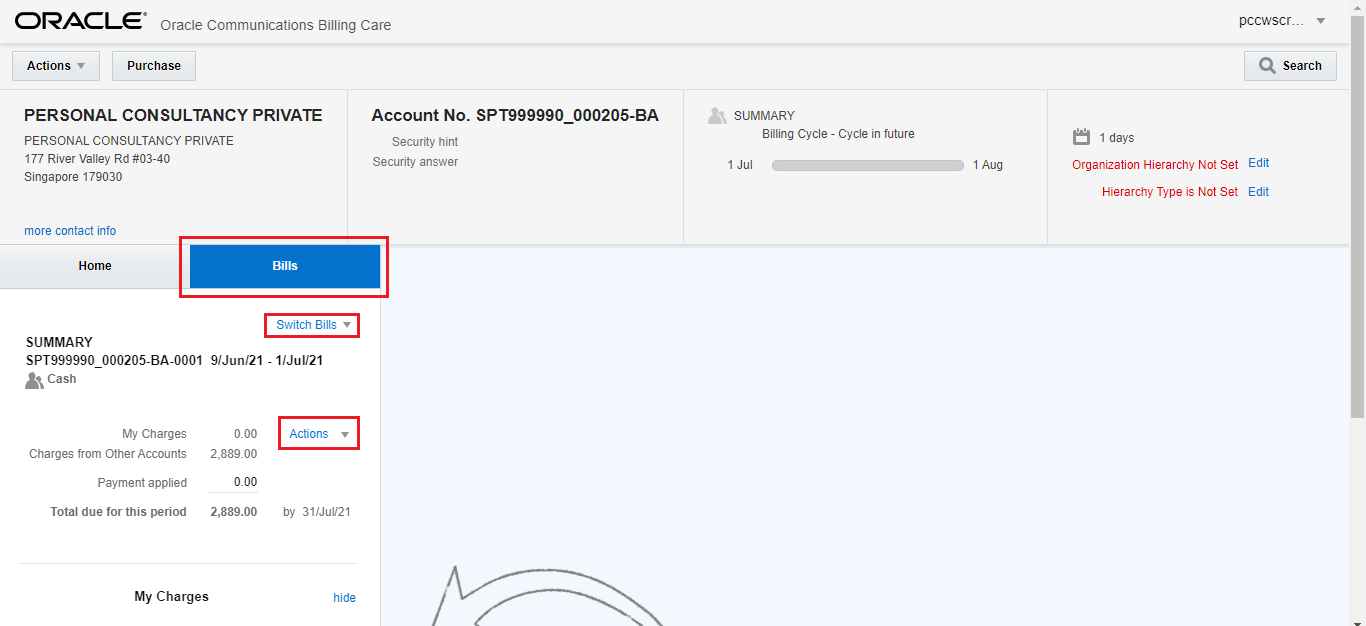
2. Click on Bills > 'Switch Bills' dropdown and select the bill to be adjusted. After selecting the bill, click on 'Actions' dropdown and then 'Adjust Bill'
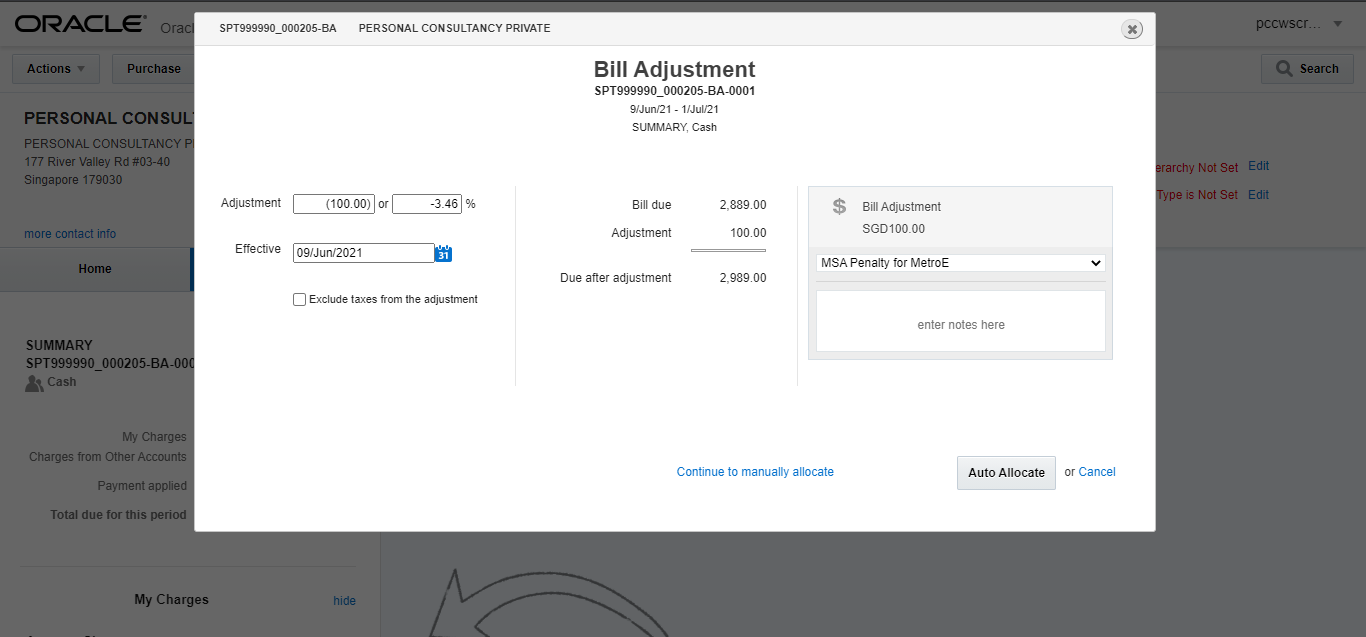
3. A bill adjustment modal will be shown. Input amount, effective date, and make sure the 'Exclude taxes from the adjustment' checkbox is unticked. Also make sure to select the correct Reason Code for the MSA Penalty Adjustment.
4. The GLID used for Bill Adjustment MSA Penalty is 1103000046.
5. Verify the penalty in billing care and in the database.
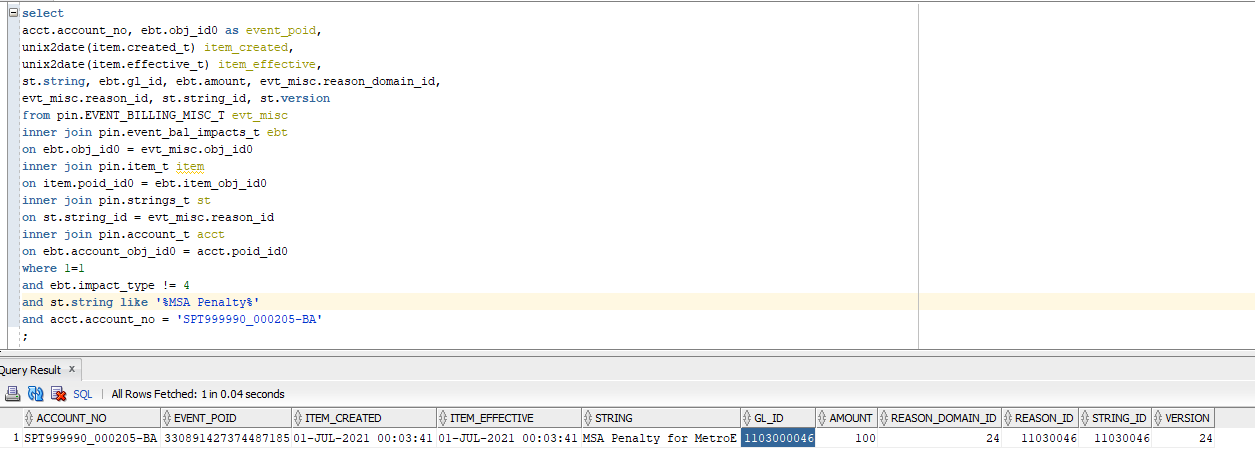
6. Before generating Corrective Bill, make sure that:
Bill already has Invoice generated.
MSA Penalty Adjustment was applied and allocated.
7. Using Billing Care, generate corrective bill with the following steps:
Click on Bills > 'Switch Bills' dropdown
Select the bill that has been applied with MSA Penalty Adjustment.
After selecting the bill, click on 'Actions' dropdown and then 'Produce Corrective Bill'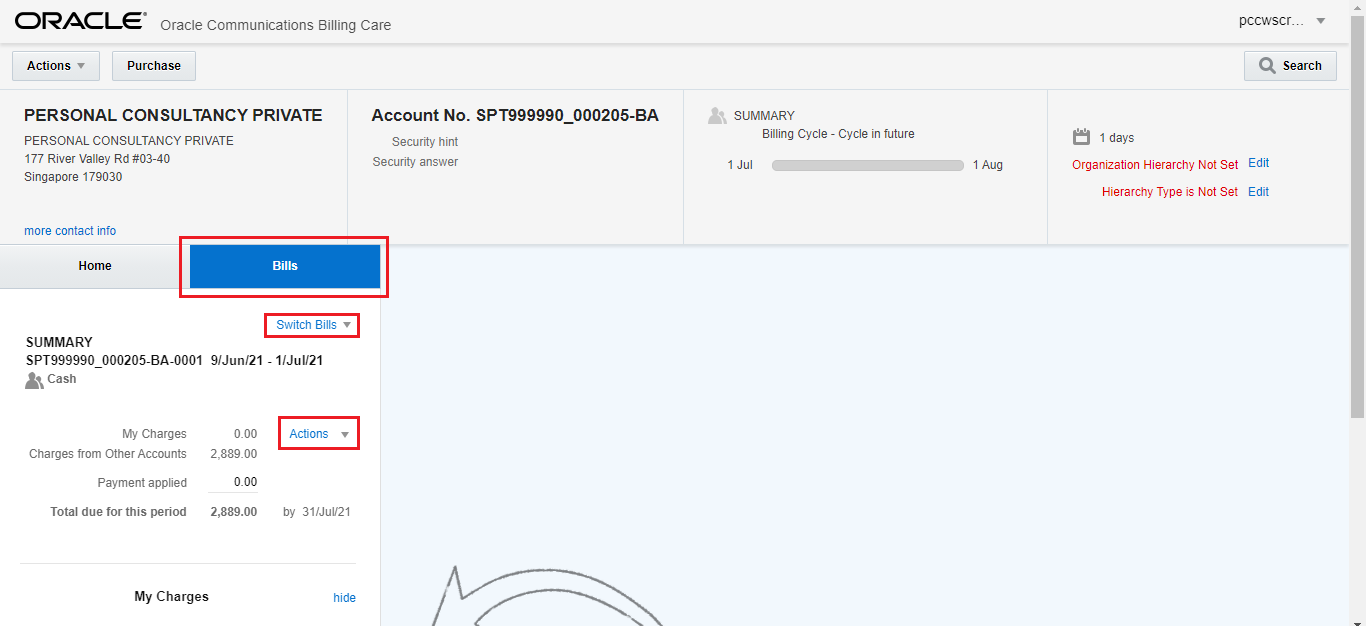
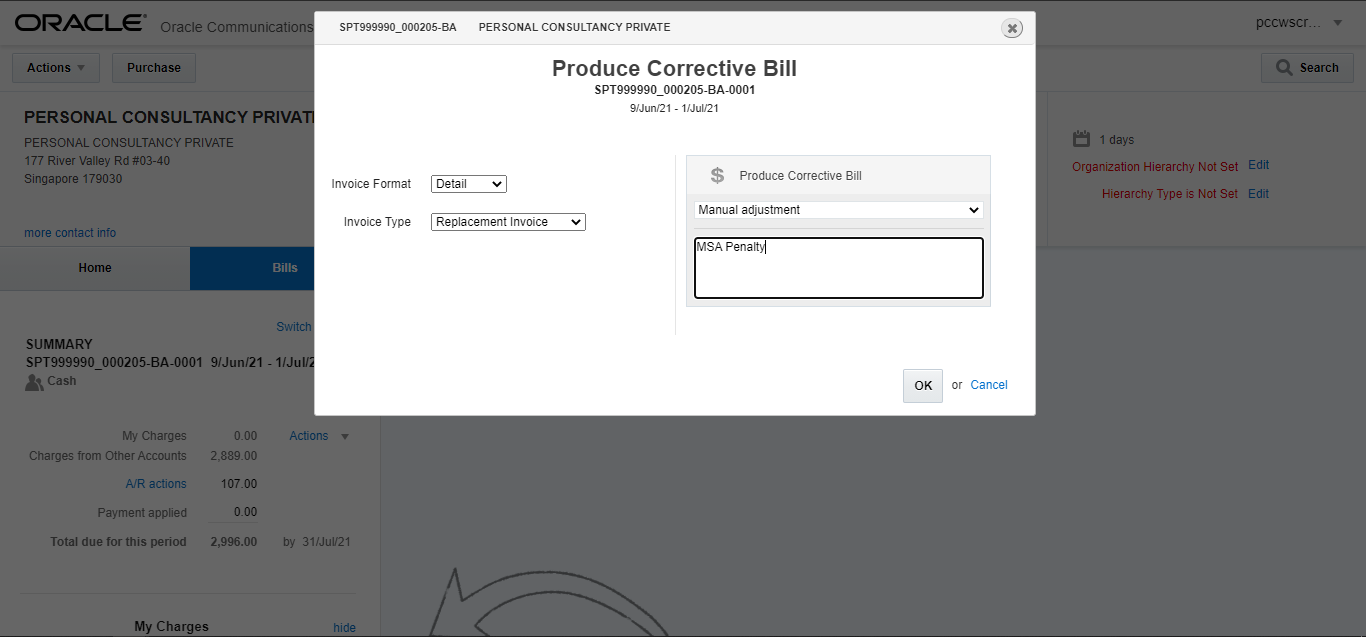
8. 'Produce Corrective Bill' modal will be shown.
Select Invoice Format: Detail
Invoice Type: Replacement Invoice
Under dropdown, select Manual Adjustment.
Input comment/remarks ex.MSA Penalty
9. After corrective bill was produced, take note of the new bill number generated for the Corrective Bill. (Corrective Bill always has a suffix indicator of the letter 'C')
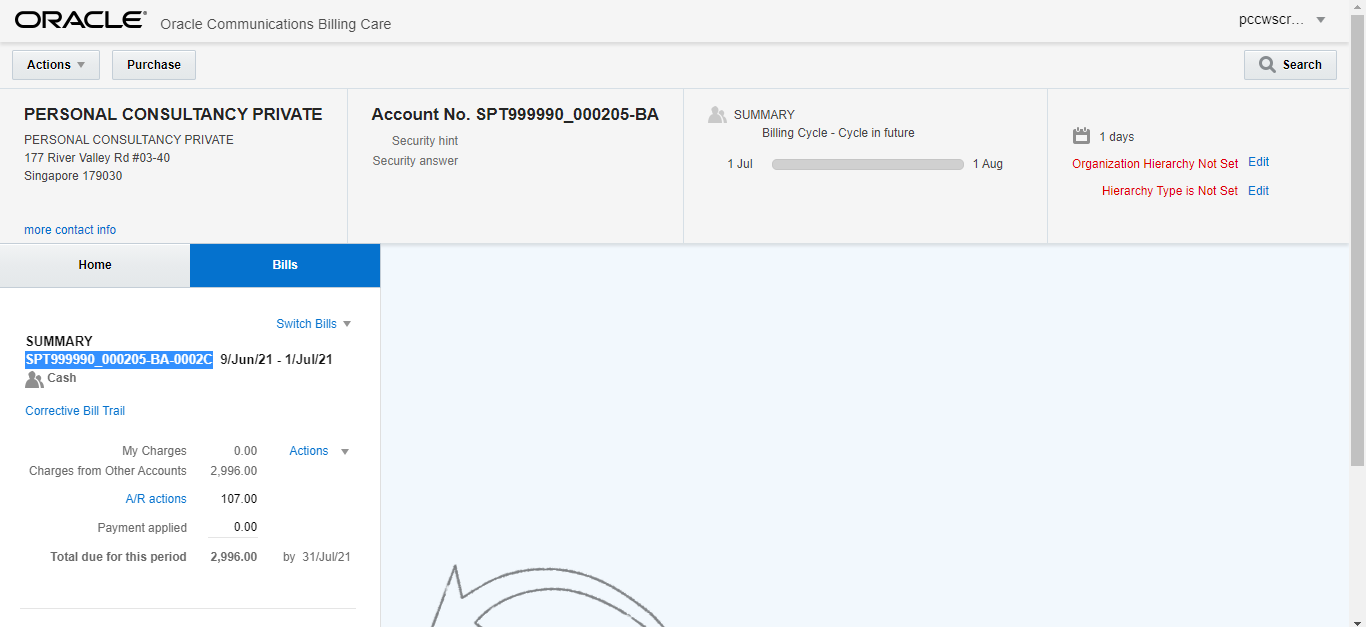
10. Generate Corrective Invoice using Rundeck:
UAT Rundeck: https://rundeckuat.sptel.int/user/login
PROD Rundeck: https://rundeck.sptel.int/user/login
Click on Projects > RVM_MANUAL_JOBS > RD_JOB_Corrective_Bill
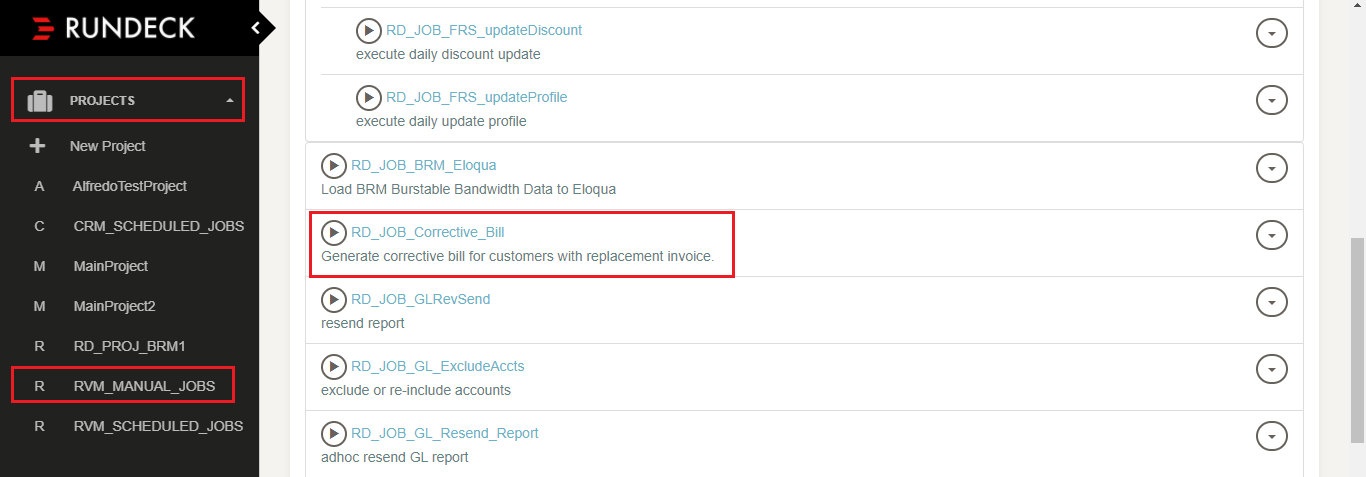
11. Input the corrective bill number that we have took note on Step #9.
Click Log Level: Normal
Choose 'Summary' on dropdown
Click 'Run Job Now' button.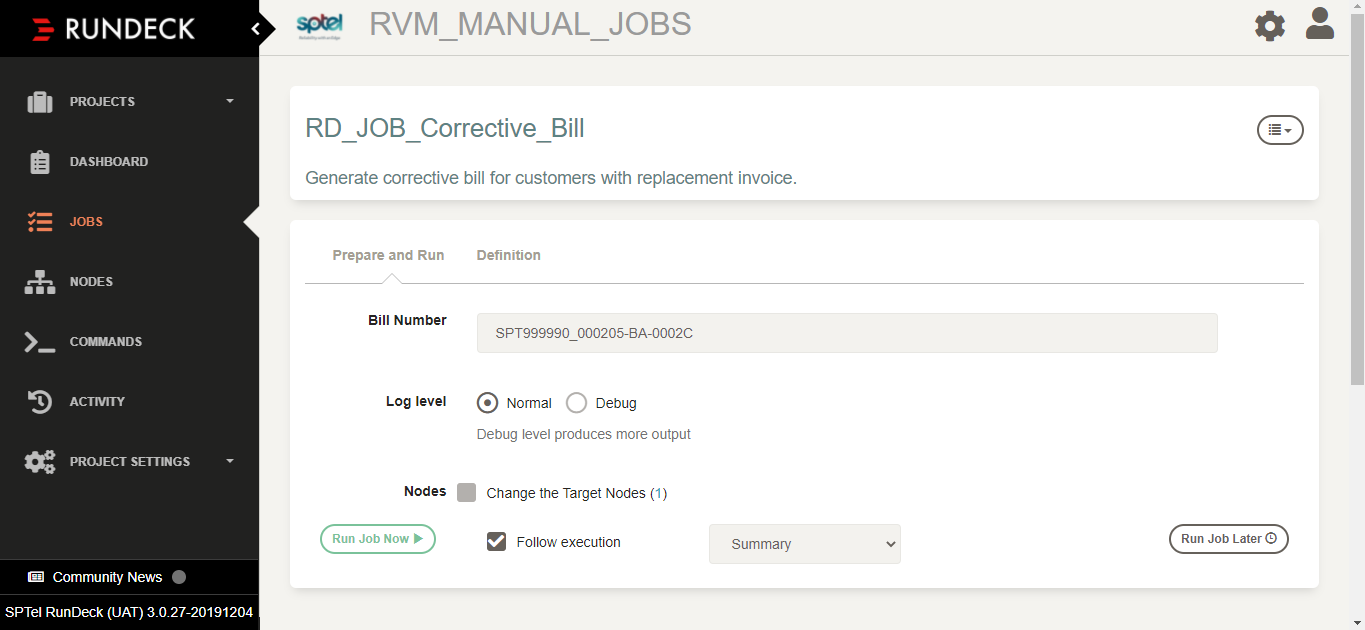
12. After running the job, it should show the following message: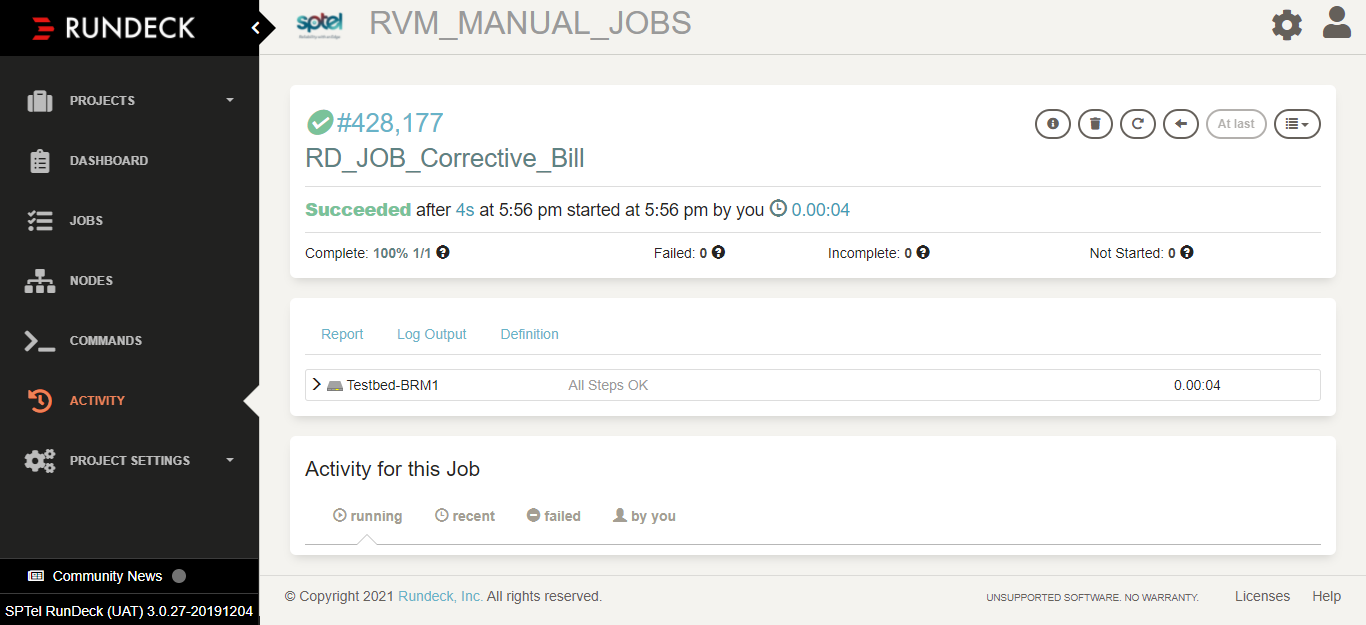
13. To view the Corrective Invoice, go back to Billing Care
Click on Bills > 'Switch Bills' dropdown
Select the bill that has been applied with MSA Penalty Adjustment.
After selecting the bill, click on 'Actions' dropdown and then 'View Invoice PDF'
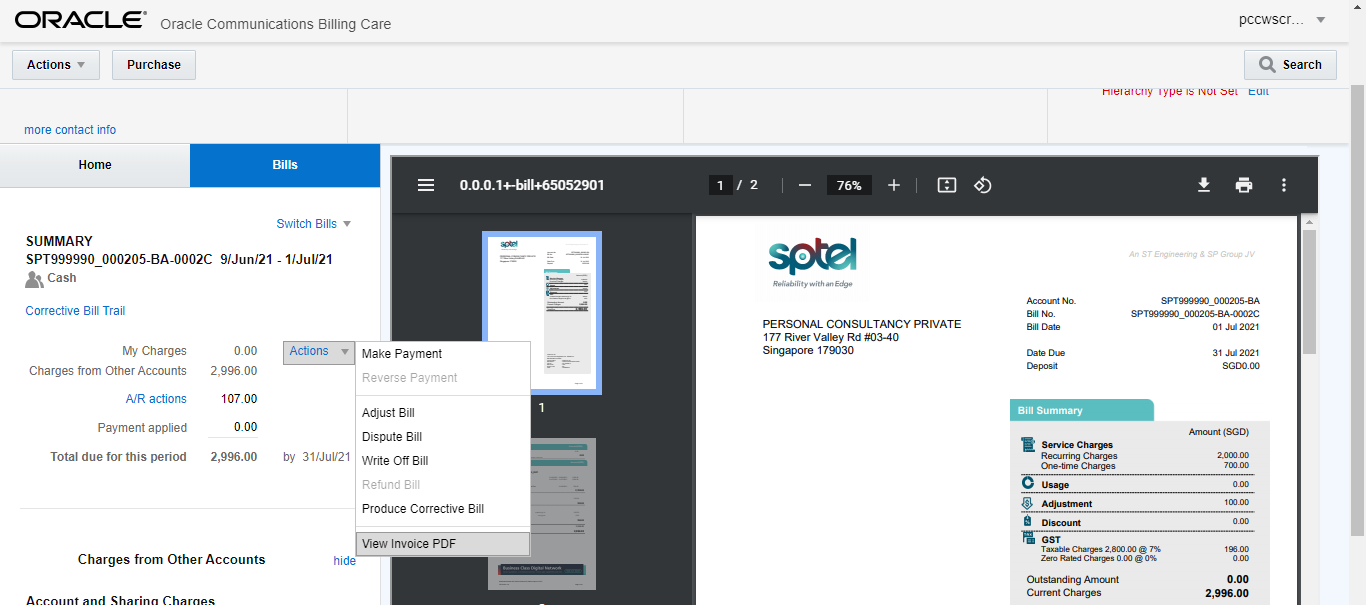
14. You can download the Invoice PDF using the button highlighted below.
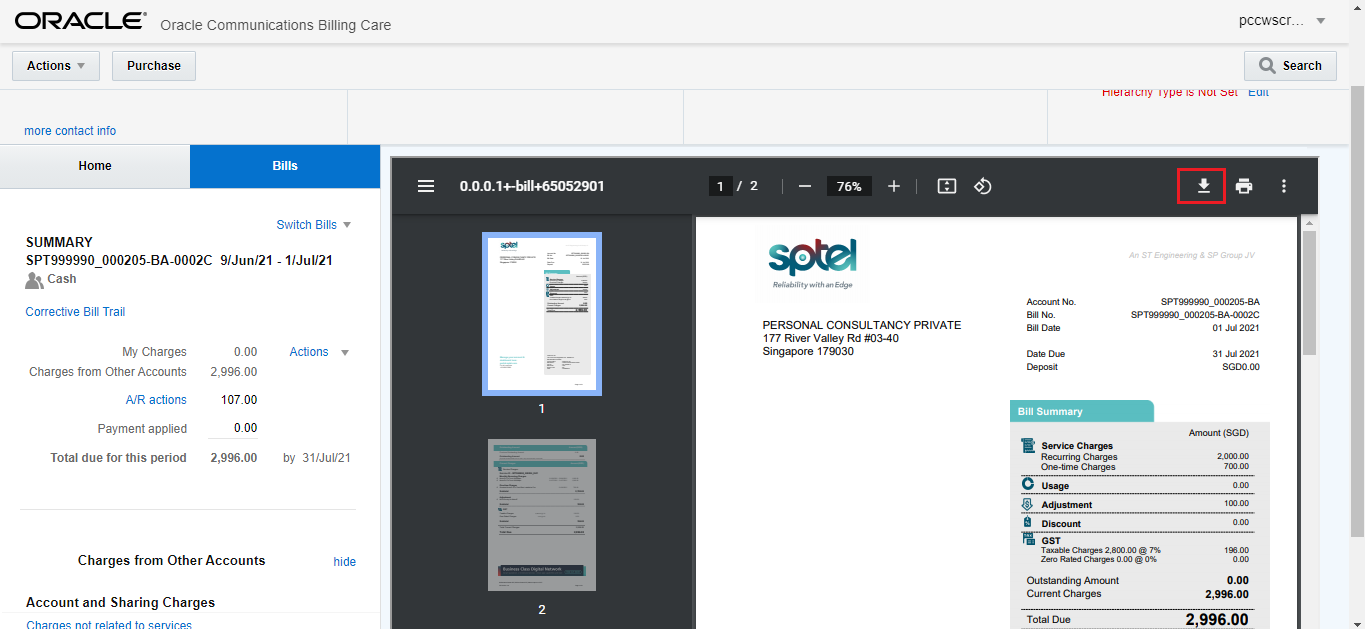
15. Validate the Corrective Invoice and make sure that the adjustment amount is shown in the first page and adjustment reason code is correct on the succeeding page.